Expenses
Record an Expense of your Business
Go to Accounting → New Expense
- When adding Expense, by default your Home Currency will be selected automatically
- When entering the "Amount" the number format will be formatted using your selected currency. For example- For USD it would be "." as decimal and for EUR it would be ',' as decimal
- (Required) Date of the transaction. By default it will be selected today's date
- (Required) Description of this transaction
- (Optional) To tag a transaction, just write the text and click Enter
- (Optional) You can choose category for this transaction
- (Optional) Choose Payee for this transaction. For example you can choose your supplier from the list as Payee. Later you will be able to see this transaction on supplier view page.
- (Optional) Ref or Reference of this transaction like transaction id, Check no etc.
- (Optional) Payment methods. Like Cash / Credit Cards etc.
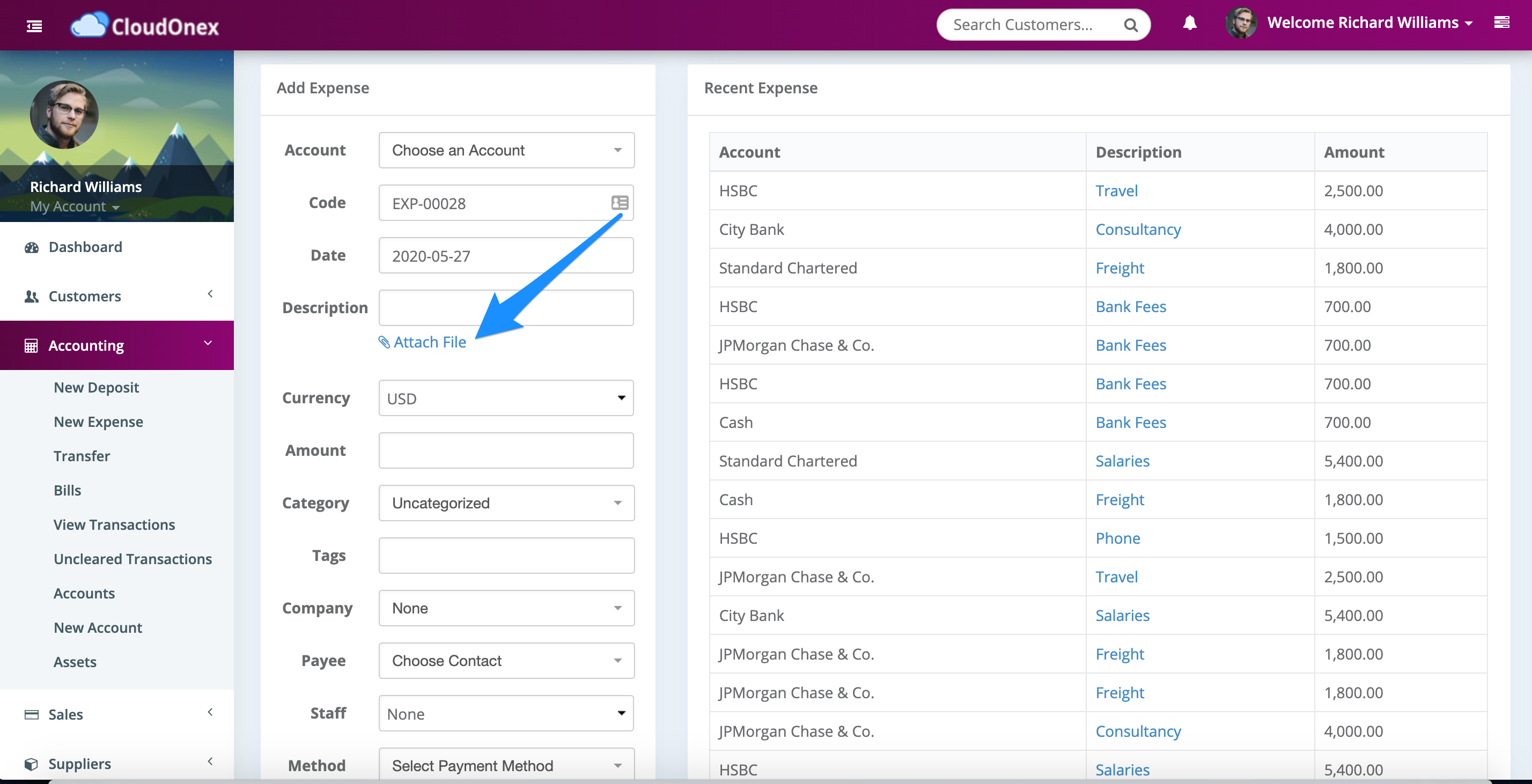
Attach files (i.e. scanned invoice) into the Expenses
You can attach files while adding expense
Still stuck? Open a support ticket.